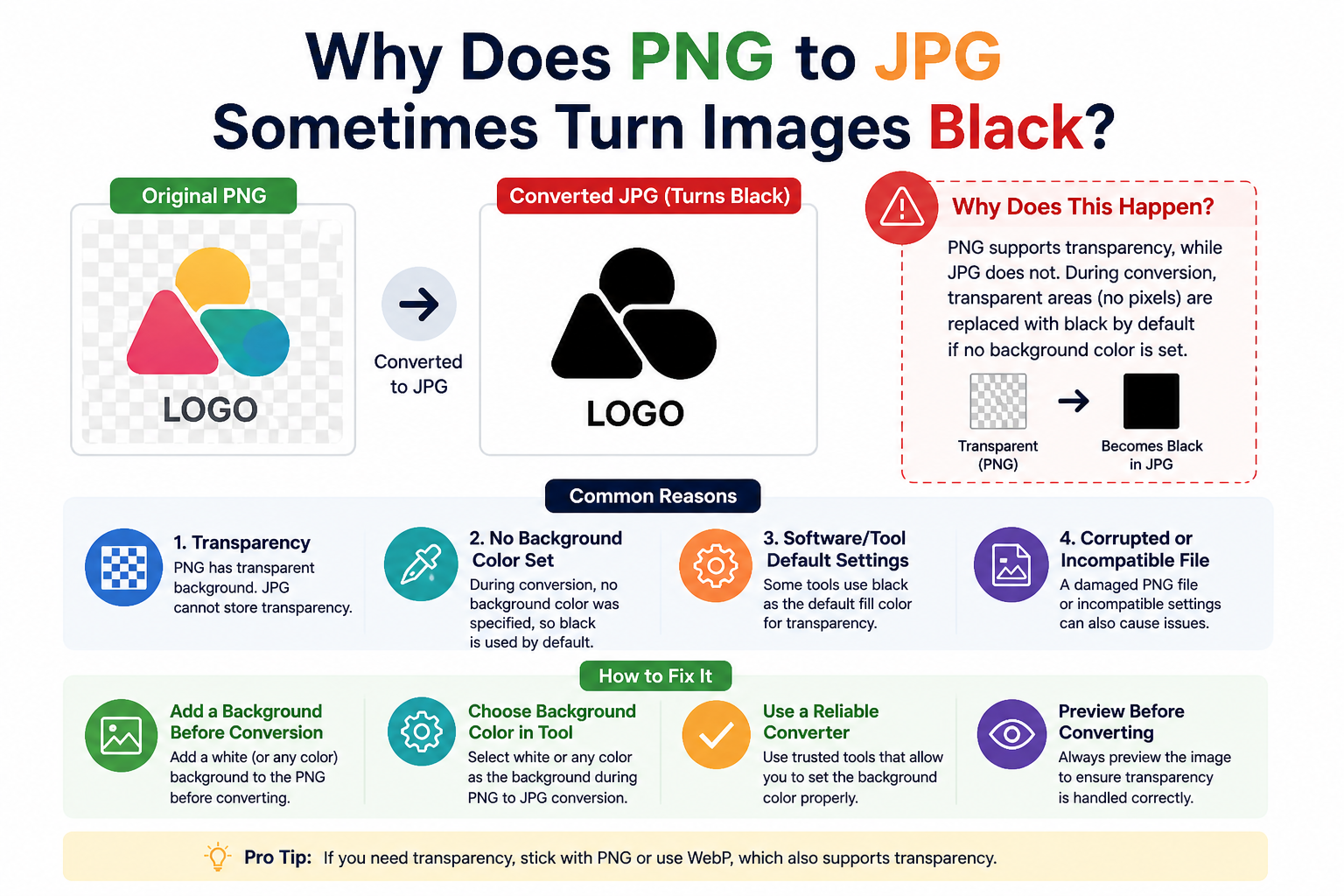
You convert a PNG to JPG. Instead of the clean image you expected, you get a photo with strange black patches or an entirely black image. What happened?
This is one of the most common frustrations people run into when converting images — and once you understand why it happens, the solution is simple.
Why Does This Happen?
PNG supports transparency — specifically, an “alpha channel” that defines which parts of the image are see-through. A logo on a transparent background, for example, has fully transparent pixels where you’d normally see white.
JPG, on the other hand, does not support transparency. It has no concept of “see-through” pixels. Every pixel must have a colour.
When a poorly-designed converter draws your transparent PNG onto a JPG canvas, it doesn’t fill the transparent areas with anything. The canvas defaults to black. Result: your transparent areas become black.
The Right Way to Handle Transparency
The correct approach is to fill the canvas with a background colour before drawing the PNG on top. White is almost always the right choice — it’s what you’d see if the image were placed on a white webpage or document.
Simple Image Converter does this automatically. Before drawing your PNG, we fill the canvas with white — so transparent areas become white in the output JPG, giving you a clean, professional result every time.
What About Other Background Colours?
Sometimes you might want a different background colour — a grey background for a catalogue, or a brand colour for marketing materials. If you need custom backgrounds, you’ll want an image editor. But for the vast majority of use cases — websites, documents, emails — white is exactly right.
What if My Image Has Partial Transparency?
Some images have semi-transparent pixels — think of a soft drop shadow, or a blurred edge. When converted to JPG:
- Fully transparent pixels → white
- Semi-transparent pixels → a mix of white and the original colour (e.g., a grey shadow)
This handles soft edges gracefully without any harsh artefacts.
JPG vs PNG: Should You Even Convert?
If transparency is important to you — for a logo you’ll use on different coloured backgrounds, for example — you should keep the PNG. Converting to JPG permanently discards the transparency information. You cannot recover it later.
Convert to JPG when: file size matters more than transparency (e.g., for web photos, email attachments, or documents where you know the background will be white).
👉 Convert PNG to JPG with a proper white background — no black patches, ever. Try it free at SimpleImageConverter.in
Quick Summary
- JPG does not support transparency — every pixel must have a colour
- Bad converters default to black for transparent areas
- Good converters fill with white before drawing the image
- Simple Image Converter always fills with white for clean results
- If you need transparency preserved, keep the file as PNG